
The image to the left is a Web Shot for the Object Theme "KillaNet"
|
How to Make a Web Shot |
|
|
The image to the left is a Web Shot for the Object Theme "KillaNet"
|
| A Web Shot is simply a bitmap picture that
shows all 4 objects of an object theme. Web Shots are useful for putting on
web sites that offer Object Theme downloads. They could also be useful for
Object Theme competitions or just to simply display them anywhere on the
WWW. Web Shots are NOT to scale. You can NOT tell which objects are big and which are small by webshots - they simply give a quick way to show people what objects are contained within an Object Theme. To start making a webshot either click "Load Existing Theme" near the bottom left of the Object Theme Maker OR load pictures into each object frame (like shown to the right). The key thing here is that there is a picture in each preview window. If a name is not already specified at the top, do so now. |
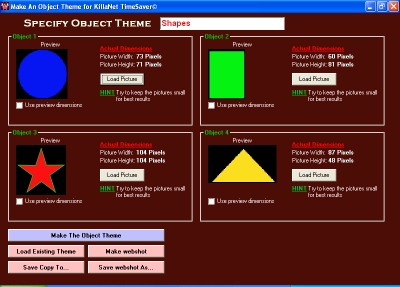 |
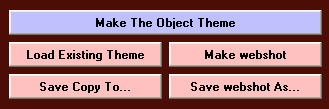 |
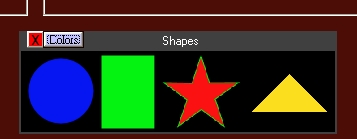
Now that all the pictures have been loaded into the preview windows, you can then click "Make webshot" this will cause the webshot to appear in the lower right region of the Object Theme Maker (shown below) |
| You will notice that there are two buttons located on the preview window of the web shot (one marked "X" and the other "Colors"). The "X" button simply closes the preview. The "Colors" button allows you to customize the frame color and the text color. |
 |
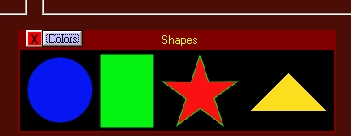
| The picture shown to the right shows a different color sequence after customization. Once you are happy with the color sequence you can save the Web Shot by clicking the "Save webshot As..." button (shown above). That's it, you've now made a webshot ready for web display. However you may want to convert the webshot from a .bmp file to a .jpg file to minimize size. |
 |